Table of Contents
⚠️ Disclaimer
The modifications described in this tutorial involve editing Klipper configuration files and adding a plugin to the Nebula Pad.
By following this tutorial, you acknowledge that:
- You perform all modifications at your own risk
- The author accepts no responsibility for any damage, data loss, or malfunction resulting from the application of this guide
- This tutorial is provided as-is, without any warranty of any kind
- These modifications may void your warranty
- A misconfiguration in
printer.cfgor an incompatible plugin can cause Klipper to crash and prevent your printer from starting — always verify your configuration after any change - This guide was tested on the Creality Ender 5 Max — results may vary on other printers
Why Do This?
The Nebula Pad has no native screenshot function — there are no physical buttons, and the standard Android screenshot commands (screencap, ADB) are not available on this device.
This tutorial installs a Klipper macro called SCREENSHOT that:
- Reads the raw framebuffer (
/dev/fb0) — the direct video memory of the Nebula Pad screen - Converts it to a properly oriented PNG file using
ffmpeg - Saves it to the
gcodes/folder, making it instantly accessible from your web interface (Fluidd or Mainsail)
ffmpeg is already pre-installed on the Nebula Pad by Creality — no additional installation is required for it.
What gets installed:
gcode_shell_command.py— a Klipper plugin that allows macros to run Linux shell commands. Without this, Klipper macros cannot execute system commands likeffmpeg.screenshot.cfg— a Klipper configuration file containing theSCREENSHOTmacro and its shell command- An include line in
printer.cfg— tells Klipper to loadscreenshot.cfgat startup
Common Prerequisites
Both options require:
- Root access enabled on the Nebula Pad (see our Root Access guide)
- A PC connected to the same Wi-Fi network as the printer
- The IP address of your Nebula Pad (Settings → Network on the pad)
Option A — Automatic Install via SSH
Choose this option if you want a fast, one-command installation with no manual steps.
Additional Prerequisites
- PowerShell (Windows) or Terminal (macOS/Linux)
Step 1 — Connect via SSH
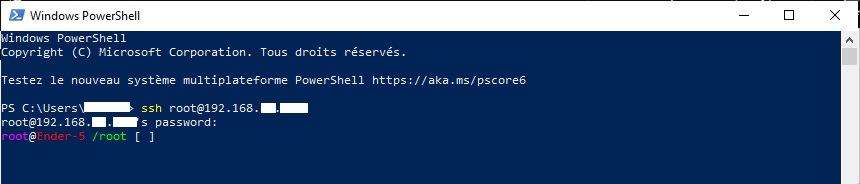
On Windows: Click Start, type PowerShell, and open it. On macOS/Linux: Open Terminal. Type the following command and press Enter:ssh root@192.168.1.XXX
Replace 192.168.1.XXX with your Nebula Pad’s IP address.
root@Ender-5 /root [#], you are connected successfully.
Step 2 — Run the Installer
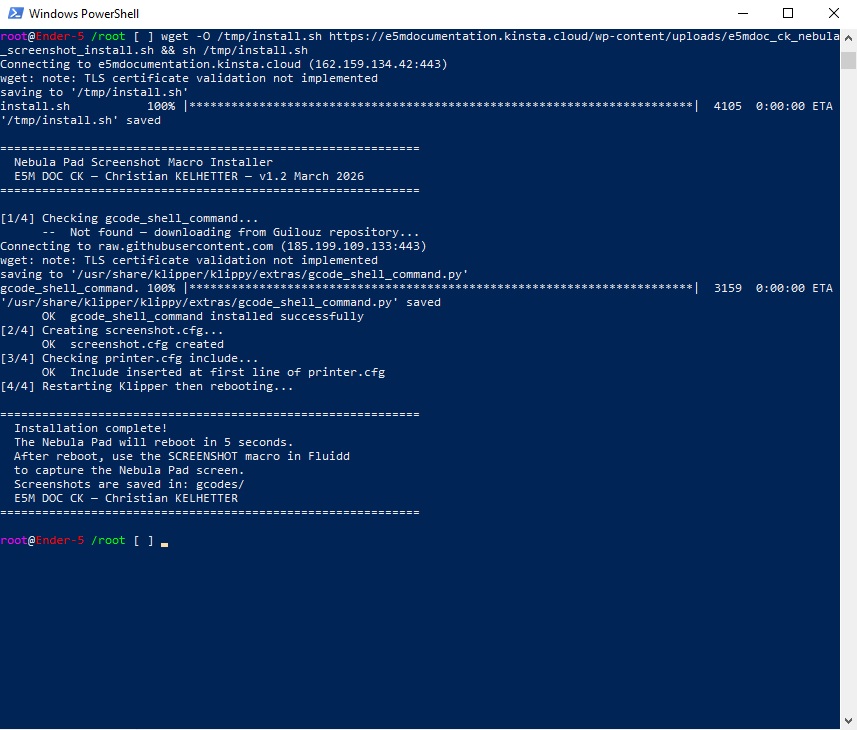
Copy and paste the following command and press Enter:wget -O /tmp/install.sh https://e5mdocumentation.kinsta.cloud/wp-content/uploads/e5mdoc_ck_nebula_screenshot_install.sh && sh /tmp/install.sh
The installer will automatically:
- Check if
gcode_shell_command.pyis already installed — download it from the Guilouz repository if not - Create
screenshot.cfgin/usr/data/printer_data/config/ - Insert the include line at the very top of
printer.cfg - Restart Klipper then reboot the Nebula Pad
Option B — Manual Install
Choose this option if you want to understand exactly what is being installed and keep full control over every file added to your configuration. Each component is installed and explained separately.
Additional Prerequisites
- PowerShell (Windows) or Terminal (macOS/Linux)
- Your web interface (Fluidd or Mainsail) installed and accessible:
- Fluidd:
http://192.168.1.XXX:4408 - Mainsail:
http://192.168.1.XXX:4409
- Fluidd:
Step 1 — Install gcode_shell_command via SSH
gcode_shell_command.py is a Klipper plugin that allows macros to execute Linux shell commands. Without it, the SCREENSHOT macro cannot run ffmpeg.
wget.
- Open PowerShell (Windows) or Terminal (macOS/Linux) and connect to the Nebula Pad:
ssh root@192.168.1.XXX
- Run the following command to download and install
gcode_shell_command.py:
wget -O /usr/share/klipper/klippy/extras/gcode_shell_command.py https://raw.githubusercontent.com/Guilouz/Creality-Helper-Script/main/files/gcode-shell-command/gcode_shell_command.py
This places gcode_shell_command.py directly in Klipper’s extras/ folder. Klipper automatically loads every .py file in this folder at startup — no further configuration is needed to activate the plugin.
Step 2 — Create screenshot.cfg via your Web Interface
- In your web interface, click the Configuration icon
{...}in the left menu - Click “+ New file” and name it
screenshot.cfg - Paste the following content:
# ============================================================
# screenshot.cfg
# Captures the Nebula Pad screen as a properly oriented PNG
# Screenshots are saved in gcodes/ folder, accessible via
# your web interface (Fluidd or Mainsail)
# E5M DOC CK — Christian KELHETTER — v1.2 March 2026
# ============================================================
[gcode_shell_command screenshot]
command: sh -c "cat /dev/fb0 > /tmp/fb.raw && ffmpeg -y -vcodec rawvideo -f rawvideo -pix_fmt bgra -s 480x272 -i /tmp/fb.raw -vf 'transpose=1' /usr/data/printer_data/gcodes/screenshot_$(date +%Y%m%d_%H%M%S).png && rm /tmp/fb.raw"
timeout: 15
verbose: True
[gcode_macro SCREENSHOT]
description: Capture Nebula Pad screen to gcodes/
gcode:
RESPOND TYPE=command MSG="// Taking screenshot..."
RUN_SHELL_COMMAND CMD=screenshot
RESPOND TYPE=command MSG="// Screenshot saved to gcodes/"- Click Save
Line by line explanation:
[gcode_shell_command screenshot] — declares a named shell command called screenshot that Klipper can trigger from a macro
command: sh -c "..." — the shell command that runs when triggered:
cat /dev/fb0 > /tmp/fb.raw— reads the raw video memory of the Nebula Pad screen and saves it as a temporary raw binary fileffmpeg -y -vcodec rawvideo -f rawvideo -pix_fmt bgra -s 480x272— tells ffmpeg the input is raw video, in BGRA color format (Blue Green Red Alpha), at 480×272 pixels — the native screen resolution of the Nebula Pad-i /tmp/fb.raw— specifies the raw file as ffmpeg input-vf 'transpose=1'— applies a video filter to rotate the image 90 degrees clockwise, correcting the screen orientationscreenshot_$(date +%Y%m%d_%H%M%S).png— saves the output as a timestamped PNG file so screenshots never overwrite each other&& rm /tmp/fb.raw— deletes the temporary raw file after conversion to keep the system clean
timeout: 15 — if the command takes more than 15 seconds, Klipper will abort it and log an error
verbose: True — Klipper will print the full shell command output to the console, useful for debugging if something goes wrong
[gcode_macro SCREENSHOT] — declares the Klipper macro that appears as a button in your web interface
RESPOND TYPE=command MSG="..." — sends a visible message to the console to indicate progress
RUN_SHELL_COMMAND CMD=screenshot — triggers the shell command defined above
Step 3 — Add the Include to printer.cfg
- In your web interface, open
printer.cfg - Add the following line at the very top of the file, before any other content:
[include screenshot.cfg] # E5M DOC CK - Nebula Pad Screenshot macro
- Click Save & Restart
Why at the top? Placing the include at the first line ensures it is always loaded first, regardless of what else is in printer.cfg. It also makes it easy to find and remove if needed.
After Installation — Take and Download a Screenshot
Once installation is complete and the Nebula Pad has restarted, the SCREENSHOT macro is ready to use.
Take a Screenshot
- Navigate to the screen you want to capture on the Nebula Pad
- In your web interface (Fluidd or Mainsail), find the SCREENSHOT button in the macros panel

- Click it — you will see the following messages in the console:
// Taking screenshot...
// Screenshot saved to gcodes/ Download the Screenshot
- In your web interface, click the Files icon in the left menu
- The screenshot appears as a PNG file named
screenshot_YYYYMMDD_HHMMSS.png

- Click on the file and select Download

How to Uninstall
To remove everything installed by this tutorial:
- In your web interface, open
printer.cfgand delete the line:
[include screenshot.cfg] # E5M DOC CK - Nebula Pad Screenshot macro
- Click Save & Restart
- In your web interface, delete the file
screenshot.cfgfrom the configuration panel - Via SSH, remove
gcode_shell_command.pyif you no longer need it:
rm /usr/share/klipper/klippy/extras/gcode_shell_command.py
- Reboot the Nebula Pad:
reboot
gcode_shell_command.py if no other macros or plugins on your system depend on it.
Compatible Printers
This tutorial was written and tested on the Creality Ender 5 Max.
The macro may work on other printers using the Nebula Pad with a 480×272 screen resolution, but this has not been verified. If your screen resolution is different, the -s 480x272 parameter in the ffmpeg command will need to be adjusted accordingly.
Tutorial by Christian KELHETTER — feel free to share and adapt with credit.
v1.0 — March 2026